View CogMAP V2 Results
This feature is for SA, ML, MA, CA, Trainer
Watch (about 1 min 30 s):
There are two ways to a student's CogMAP V2 results: from the student's own page, or from the CogMAP list under Reports.
Way 1: from the student's page
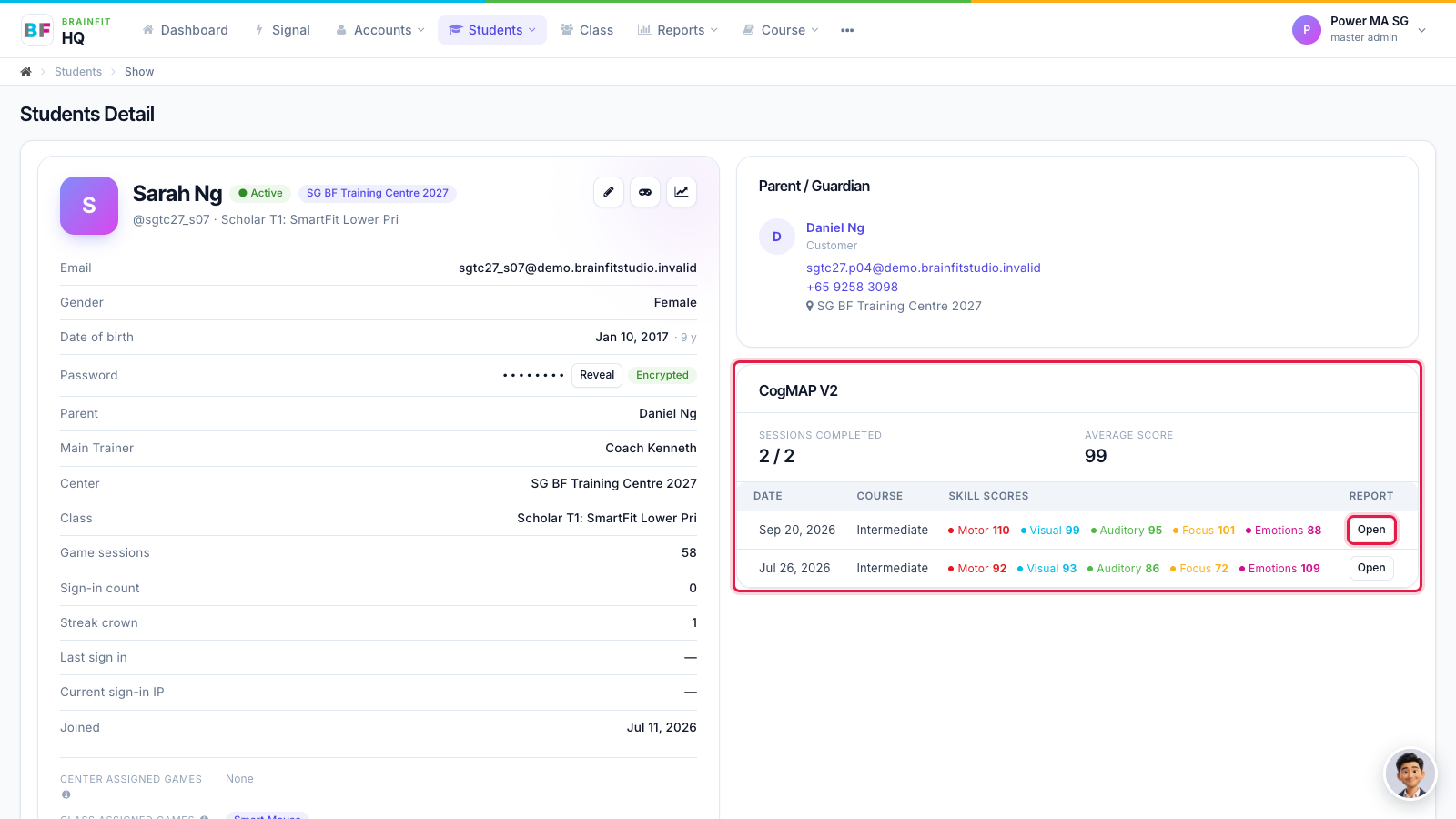
- Open the student's page (in Students, click the magnifier icon). The CogMAP V2 card shows how many sessions are completed, the average score, and each skill's score (Motor, Visual, Auditory, Focus, Emotions) for every round. Click Open on a round to see its full report.
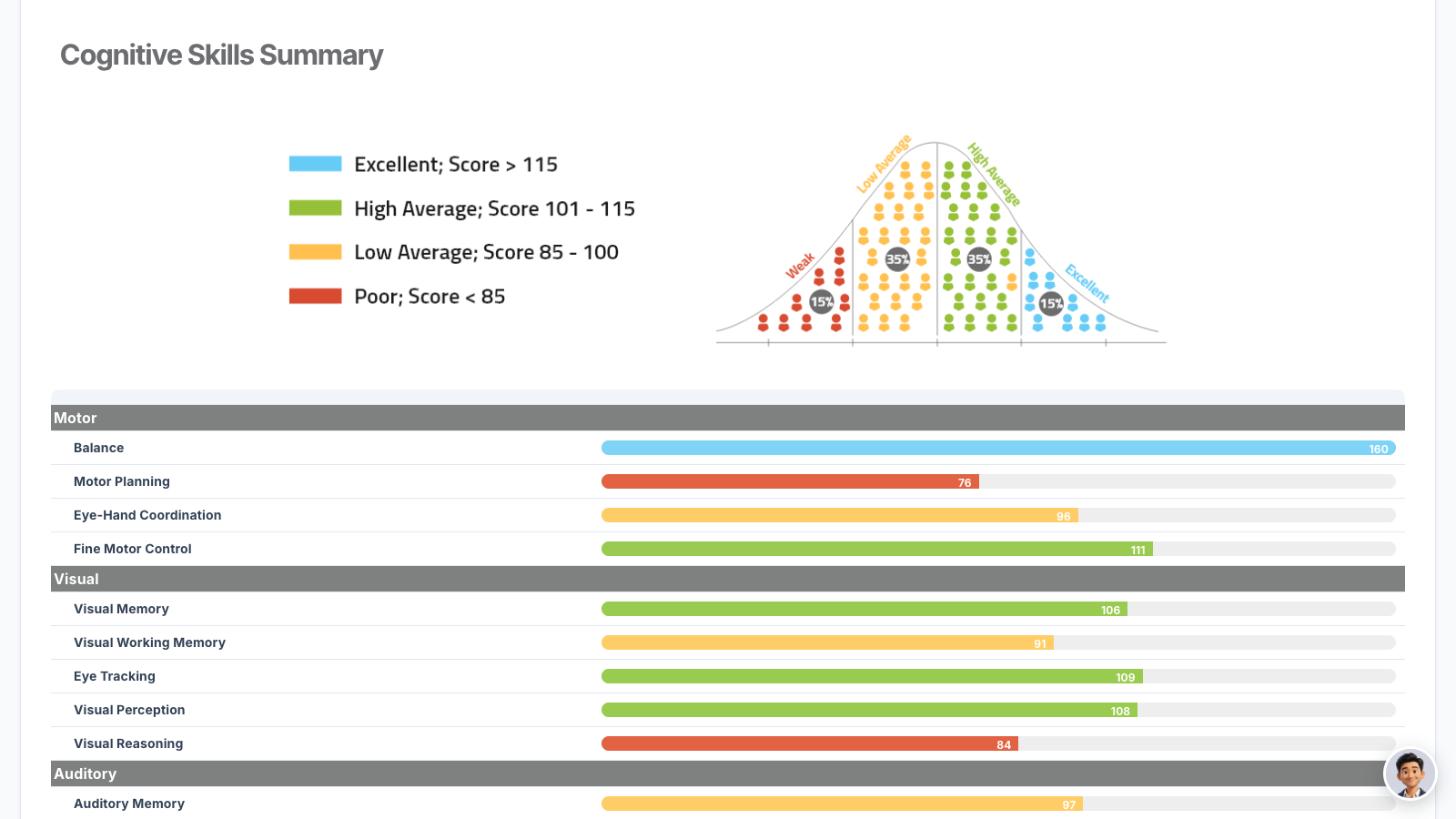
- The report opens for that round. Change Round or the report language, then click Show. Print prints the report or saves it as a PDF.

- The report includes the Cognitive Skills Summary: every skill with its score and band (Excellent, High Average, Low Average, Poor).
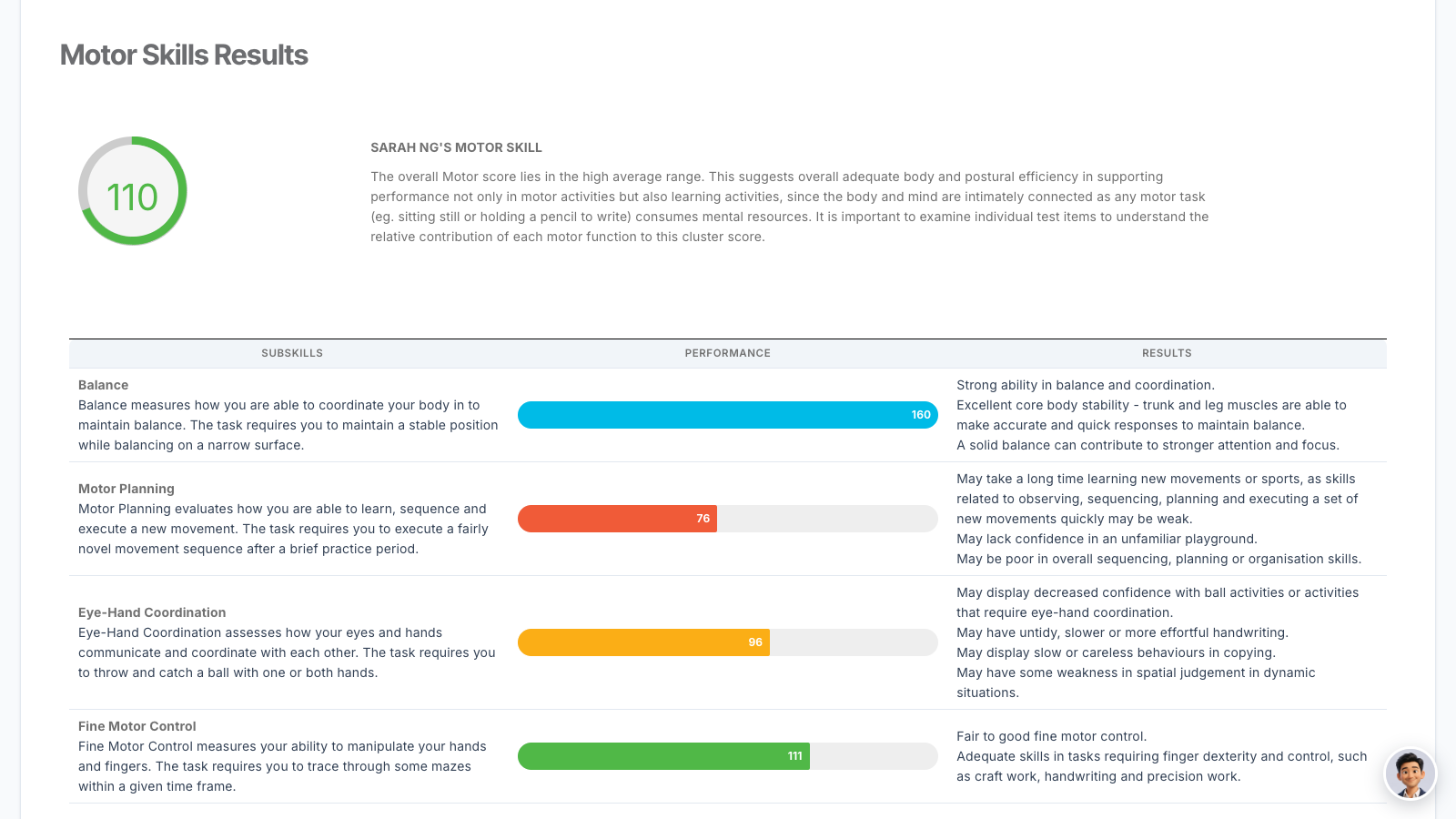
- Each area then has its own page, for example Motor Skills Results, with the score, what it means and what to work on.
Way 2: from the CogMAP list (Standard Score)
Use this to find any student's results, including students you don't have open.
- Open Reports in the top menu and click Standard Score under CogMAP V2.
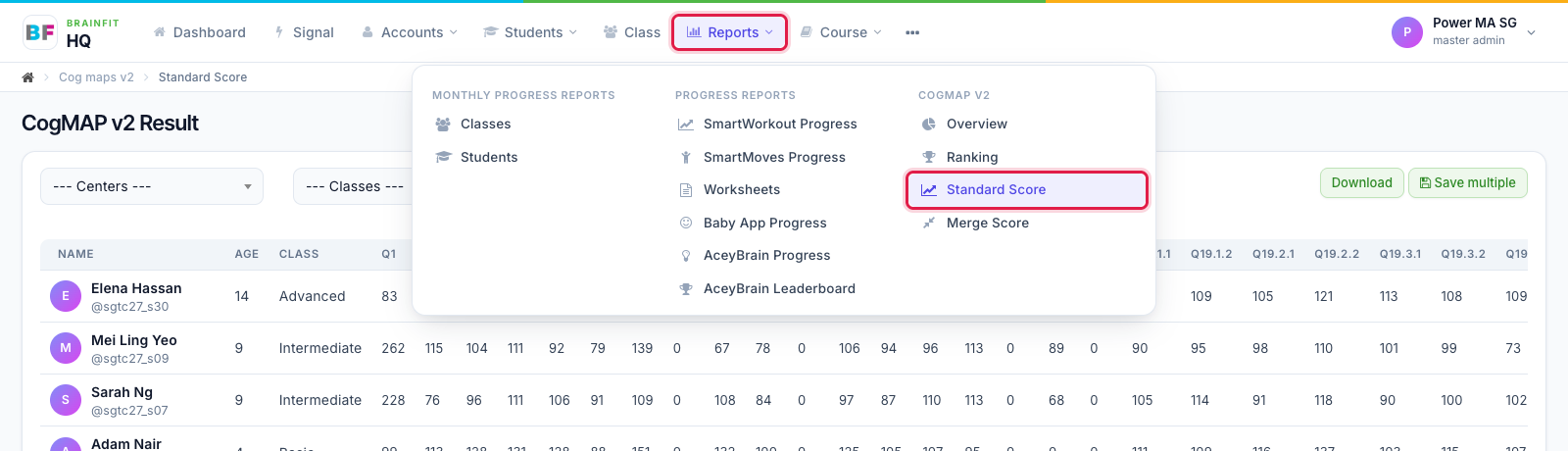
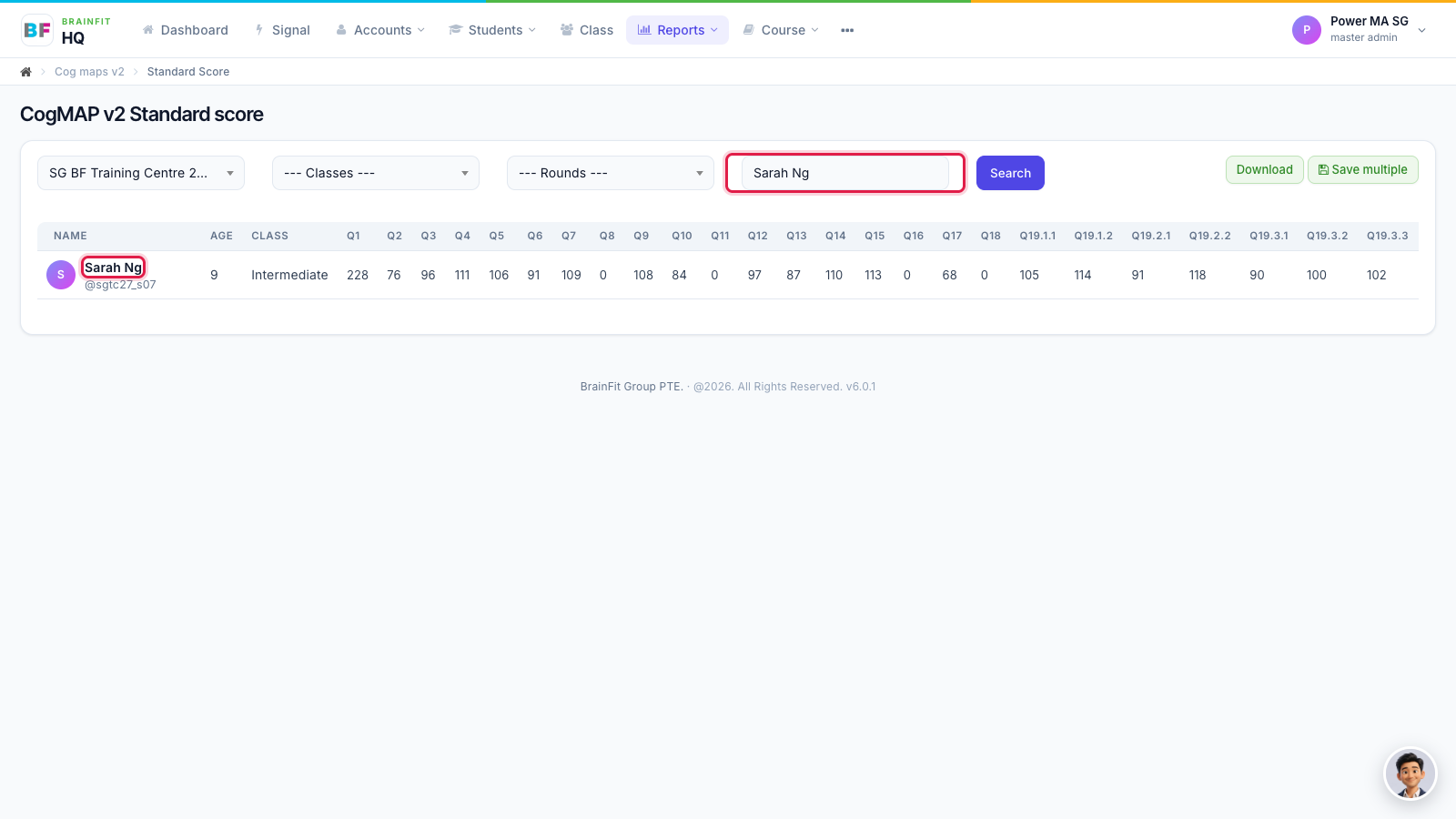
- Choose the centre (and the class or round if you like), type the student's name and click Search. The table shows each question's score. Click the student's name to open their report.
- The student's CogMAP report opens, with the spider chart and each skill's scores. Choose the Round and the report language, click Show, then Print to print it or save it as a PDF.
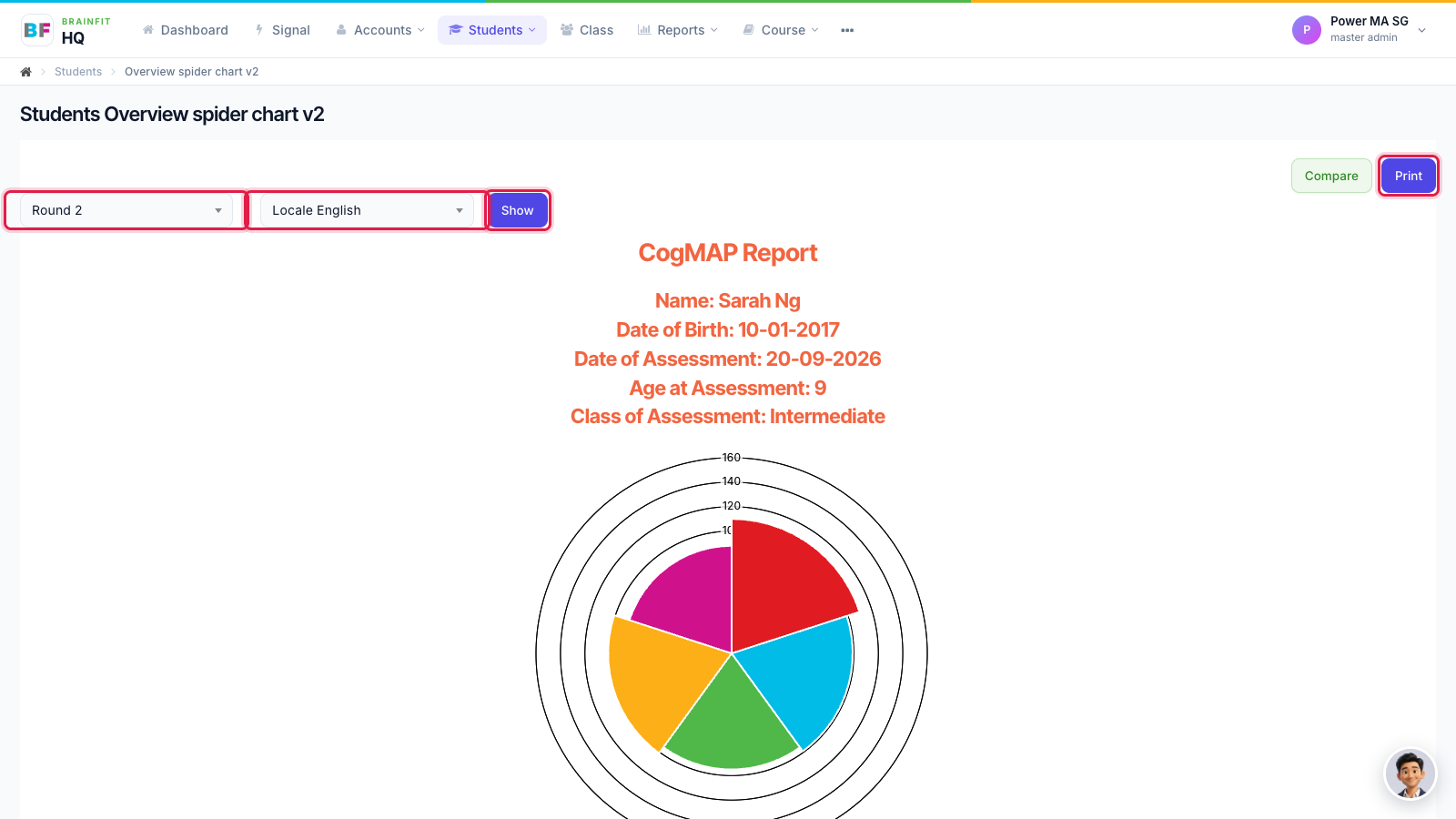
Note: the page opened from the list is the student's overview chart. The full report with the Cognitive Skills Summary and a page for each area (Way 1) opens from Open on the student's page. To print from the list, see Find and Print a Report.